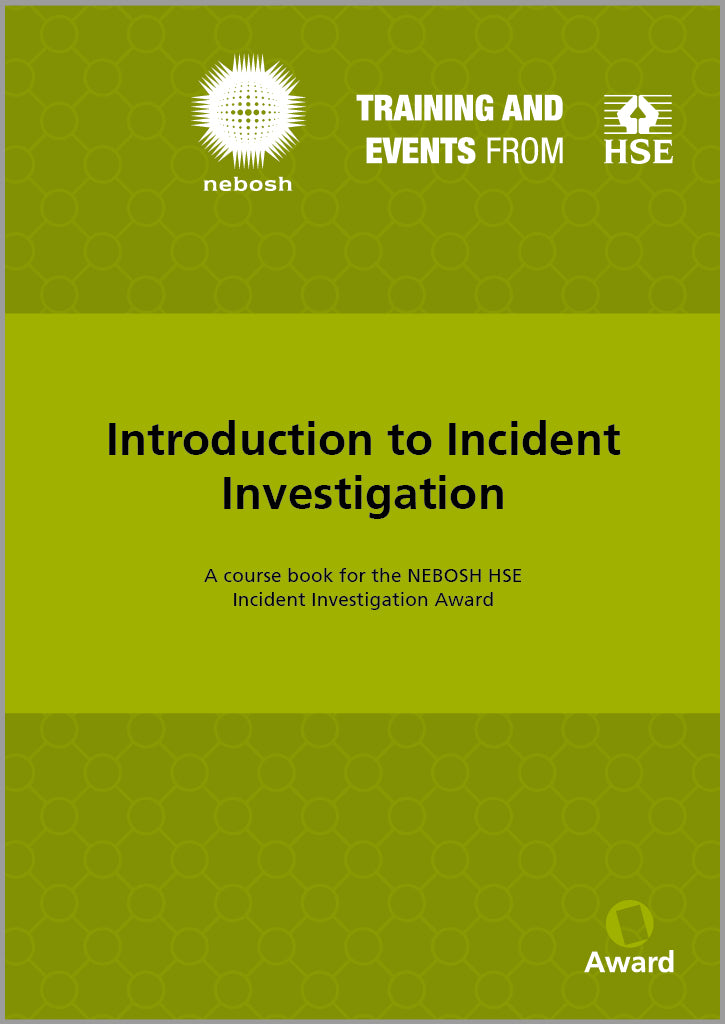
Introduction to Incident Investigation (Edition 2) (Consumers eBook)
Introduction to Incident Investigation (Edition 2) (Consumers eBook)
Couldn't load pickup availability
Product Details
Product Details
Introduction to Incident Investigation (Edition 2) follows the 2025 syllabus for the NEBOSH HSE Introduction to Incident Investigation (INV) qualification. It uses activities and case studies to illustrate the core areas covered.
If you are looking to ensure you investigate incidents effectively and learn lessons in your workplace, this book will be a valuable resource. It covers the human and organisational factors that can contribute to an incident, the process for investigating incidents and outlines positive interview strategies.
Learners studying for this qualification may be provided with a copy of this book by their Learning Partner.
NEBOSH eBooks are accessed via our third party supplier, Glassboxx. More information about the Glassboxx service is available here. The Glassboxx privacy policy is available here. For system requirements and other information about eBooks, please click here.
Product Sample and Updates
Product Sample and Updates
Qualification information
Qualification information
Accessing eBooks
Accessing eBooks
Who can purchase eBooks through the NEBOSH shop?
There are two ways to purchase NEBOSH eBooks.
If you are a NEBOSH Learning Partner, wherever you are in the world, you can purchase eBook tokens directly from NEBOSH for yourself and for your learners. You will need to be logged into your NEBOSH shop account to do this. Please ensure that your learners are able to download the eBook software before purchasing eBooks.
If you are not a NEBOSH Learning Partner, you can currently only purchase a consumer eBook if you are located in the United Kingdom. We are actively working towards a solution to make our eBooks available to consumers worldwide.
Once I've purchased an eBook, how do I access this?
If you are a NEBOSH Learning Partner, you will be supplied with redemption tokens. eBook redemption tokens are immediately issued when your purchase is completed and are available for download from your customer account area.
Click on the link on the Order Confirmation page to go directly to your account area. Then click on the order number associated with your eBook order, and click the button to download the tokens. If this button does not display, please refresh your browser. All tokens are supplied through a CSV file.
You can return to the order confirmation screen at any time by clicking on "View your order" in your order confirmation email.
Once you have downloaded your token, follow the Redeeming tokens instructions to access your eBook(s).
If you have purchased a Consumer eBook, it will automatically download to your Glassboxx account (linked to the email address you used to place the order) upon checkout. The eBook will be available when you log into the Glassboxx eReader app (using the same email address that you used when you purchased the eBook).
Redeeming Tokens
Redeeming Tokens
This is my first time redeeming a token, what should I do?
First, download the CSV file containing your token. Note: if you have received your token from your Learning Partner, you will not need to do this.
To get your copy of the eBook:
1. Go to glassboxx.com/token
2. If this is your first time using Glassboxx, please create a Glassboxx account by entering your name and email address. Enter your eBook redemption token.
3. Download the Glassboxx App to your Smartphone, Tablet or Desktop. The latest versions are available here. Or go to https://reader.glassboxx.co.uk to read your books in your web browser.
4. Log-in to the app using the same email address that you used to create your Glassboxx account.
5. On the Verification screen, enter the verification code sent to your email address and tap VERIFY ME. If you do not receive your code, please check your Spam filter.
Your eBook will now automatically appear in the app ready for you to read.
I have redeemed a token through Glassboxx before, what should I do?
First, download the CSV file containing your token. Note: if you have received your token from your Learning Partner, you will not need to do this.
To get your copy of the eBook:
1. Go to glassboxx.com/token.
2. Enter your name and the email address you use for your Glassboxx account. Enter your eBook redemption token.
2. Open the Glassboxx App, go to the My Books screen, refresh the page, and your new book will automatically appear.
Reading eBooks
Reading eBooks
Do I need any specific software to access NEBOSH eBooks?
Yes. To access your NEBOSH eBook, you will need to download and install the Glassboxx App. The latest versions are available here.
Learning Partners: Please ensure that your learners are able to download this software before purchasing eBooks.
Can I access my eBooks using my web browser instead?
Yes. Go to https://reader.glassboxx.co.uk
Enter your email address – the same one you used to redeem your token. A verification code will be sent to your email address. If you do not receive your code, please check your Spam filter.
Enter the verification code and tap VERIFY ME.
Your eBooks will display on the My Books page.
Note that the internet access is required to read your eBooks using your web browser.
How many devices can I read my eBook on?
You can access your NEBOSH eBook on up to six devices using the same email address on each of your devices.
How do I read an eBook?
Simply click on the cover of the eBook you want to read. If you’ve read it before, it will open at the point you have reached. If it’s a new book, it’ll open at the beginning.
How do I change the appearance of the eBook I’m reading?
When reading an eBook, click the Settings cog wheel in the top right-hand corner of the screen. This displays the menu where you can change the font size, font face and colour options to suit your preferences.
You can also change to use either scroll mode or paginated mode, and change alignment, page mode, word spacing, line spacing, page margins and line height.
After making your required changes, click in the body of the eBook to close the Settings menu. Please note that fixed layout eBooks do not allow changes to appearance settings.
Can I adjust the text size within my eBook?
Mobile app
With the book open, tap in the middle to bring up the menu. Select the Aa icon top right. Here you can adjust the size of the font as well as the font type and much, much, more.
Desktop app
With the book open, select the Aa icon top right. Here you can adjust the size of the font as well as the font type and much, much, more.
Browser
With the book open, select the cog in the top right hand corner. Here you can adjust the size of the font as well as the font type and much, much, more.
Can I print my eBook?
No, all NEBOSH eBooks are protected and printing is not permitted.
Can I copy pages of my eBook?
No, all NEBOSH eBooks are protected and copying is not permitted.
Can I add notes or highlight content within my eBook?
Mobile App
To add highlight, simply tap and hold the text to be highlighted, and select Highlight from the pop-up that appears near the text. Then by tapping the highlighted text, you can select an alternate colour to be used for the highlighting or delete the highlight.
To add an annotation or note, tap and hold the text to be annotated, and select Notes from the pop-up menu. Enter the text for the note and tap Save. On iOS this highlights the text in grey. On Android, this displays a sidebar at the end of the line with the note. To view the contents of the note, tap the highlighted text or sidebar and tap the Notes icon.
Desktop App
Unfortunately, it is not currently possible to add highlights and notes using the desktop app. However, this will be available in a future release of the Glassboxx app.
Browser
Simply highlight the text with your cursor and a menu will pop up. Here you can choose to highlight the text, underline the text and/or add notes. To view your annotations, hover over the note icon that has been inserted into the book or go to the icon in the top left of the eReader and select Annotations.
Can I share my eBook?
No. All NEBOSH eBooks are protected and can only be read by the user with the same email address on up to six devices.
Troubleshooting
Troubleshooting
I am unable to install desktop apps on my computer, is there an alternative?
If you’re unable to install the Glassboxx desktop apps for Windows or MAC it is possible to read the book in the browser:
- Go to https://reader.glassboxx.co.uk
- Enter your email address – the same one that you used to redeem your token.You will be sent a verification code to your email address. If you do not receive this code, please check your Spam filter.
- Enter the verification code and tap VERIFY ME.
Your eBooks will display on the My Books page.
Note that the internet access is required to read your eBooks using your web browser.
My device is using an older operating system. Will that be a problem?
Once the operating system (Android or iOS) nears end of life, manufacturers stop releasing device and operating system updates, and that might mean the Glassboxx app may not work as expected.
If you experience a 009 error code when downloading a book, this is probably because you are using an older operating system. To resolve this please update your device to the latest version of the operating system.
I’ve got a new phone or tablet. How do I transfer my books to it?
Simply download the Glassboxx app from the app store onto your new device, log into your Glassboxx account using the same email address that used to redeem your token(s), and they will automatically download.
I’ve got a new Windows or Apple computer. How do I transfer my books to it?
Simply download the Glassboxx app from the app store onto your new device, log into your Glassboxx account using the same email address that used to redeem your token(s), and they will automatically download.
What is the difference between fixed layout and reflowable eBooks?
Fixed layout eBooks replicate the design and layout of the printed book and are delivered as either PDF or ePub files. Regardless of file type, these are accessed via the Glassboxx App.
Reflowable eBooks adjust the content per page to fit the device screen size and user preferences. These will always be delivered as ePub files and accessed via the Glassboxx app.
Each NEBOSH eBook is available in either a fixed or a reflowable layout depending upon the specific publication. The format will be stated on the product information page.
What do I do if I have more questions?
If you have any questions about the Glassboxx app, click on the three dots at the bottom left-hand side of the Glassboxx home page. From there, you can access Glassboxx FAQs and Glassboxx customer support.
If you have any questions about the content of your eBook, please contact NEBOSH here.
If you are experiencing issues with an Adobe Digital Editions eBook, please contact NEBOSH here.
Learning Partners: if you have any questions or issues, please contact NEBOSH here.